


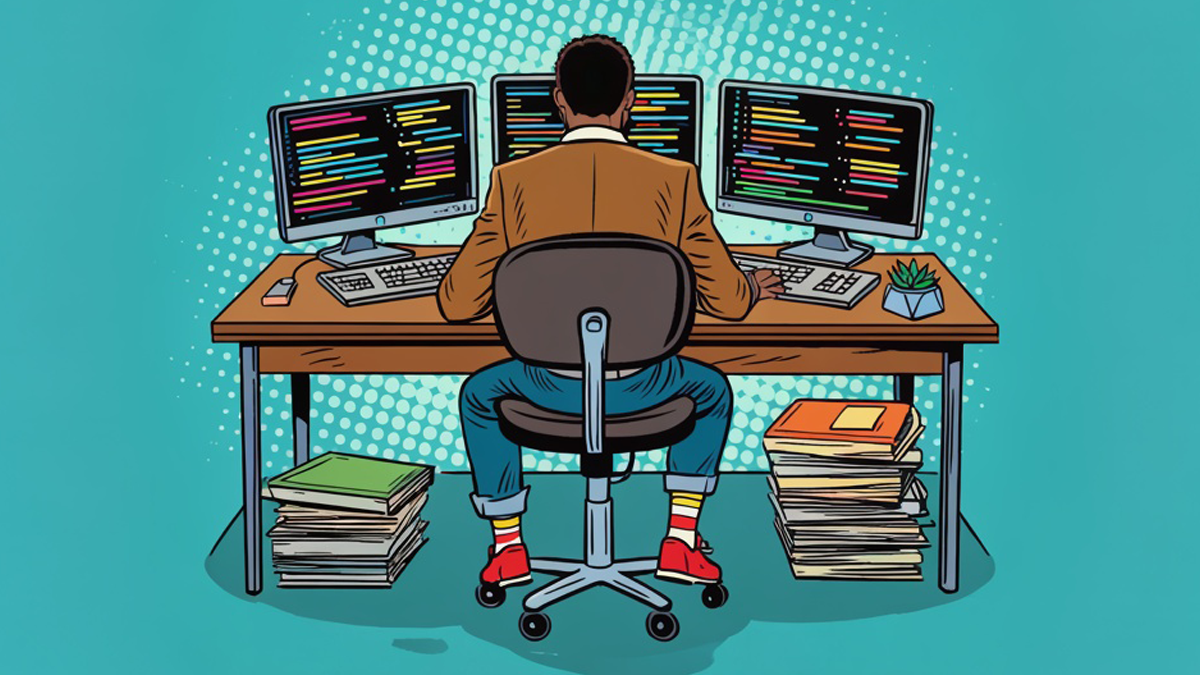
In today’s digital world, more people than ever are relying on multi-screen setups to stay productive. Whether working from home, managing hybrid office tasks, or simply juggling multiple applications at once, the need for additional screen space continues to grow. Studies by Jon Peddie Research notes that multiple monitors can increase productivity by as much as 42%, and other studies have found boosts of up to 30% when adding a second screen. This makes expanded screen real estate not just a luxury, but an essential part of an efficient, modern workstation.
Why We Need More Screens Than Ever
Screen real estate has become critical for a wide range of professional tasks. Large datasheets, long email threads, creative workflows, video conferencing, and browser-based tools all demand space. Switching constantly between windows wastes time, interrupts concentration, and increases mental load.
A dual- or multi-monitor setup offers several clear benefits:
☝ Better multitasking: Keep email on one screen, research on another, and creative content on a third.
☝ Improved workflow: Instead of toggling through tabs, you can view multiple applications at once.
☝ Greater comfort: More screen space more closely matches our natural field of view, making digital work physically and mentally easier.
☝ Enhanced organisation: Reference materials can sit on one screen while you work on another, reducing switching fatigue.
It’s no wonder that professionals across fields, from financial analysts to designers, from gamers to remote workers, are embracing multi-display workstations.
But while more screens bring more efficiency, they also traditionally bring… more cables.
The Challenge: Cable Chaos
One of the biggest barriers to multi-monitor setups is the tangle of wires that usually comes with them. According to Brother’s Workplace Organisation Survey insights, 41% of workers believe a tidy desk enhances productivity. Yet traditional multi-monitor systems require each display to be individually connected to the computer, creating clutter that can quickly overwhelm even the neatest workspace.
This is where daisy chaining comes in – offering a cleaner, simpler, and far more modern solution.
What Is Daisy Chaining?
Daisy chaining allows you to connect multiple monitors using just a single cable from the computer, with the displays linked together in a chain. Instead of running one cable per monitor to the laptop or PC, you connect:
Step 1: The computer to Monitor 1
and Step 2: Monitor 1 to Monitor 2
and Step 3: Monitor 2 to Monitor 3
…and so on
This works through a technology called DisplayPort 1.2 Multi-Stream Transport (MST) or through Thunderbolt 3/4 on compatible monitors. Each display must include DisplayPort In and DisplayPort Out (or Thunderbolt In/Out) to allow the signal to pass through the chain.
The Benefits of Daisy Chaining
Daisy chaining offers a range of advantages beyond simply adding more displays.
1 One Cable from the Laptop
Instead of connecting two, three, or even more monitors individually, daisy chaining reduces your setup to just one cable coming from your device. This is a major advantage for users of modern, slim laptops that often provide only a small number of ports.
2 A Cleaner, Decluttered Desk
By dramatically reducing cable count, daisy chaining creates a minimal, tidy, and professional workspace. This is beneficial not just aesthetically – research shows tidy workspaces reduce stress and support better focus.
3 Quick and Simple Setup
Daisy chaining is easy to configure. Once you understand the basic in-out connection chain, expanding your workspace becomes plug-and-play simple.
4 Perfect for Modern Laptops
Ultraportable laptops often offer only two or three ports, sometimes just USB-C. Daisy chaining makes it possible to run two or more monitors without buying bulky docks or adapters.
5 Boosted Productivity
Multi-monitor setups significantly improve productivity, allowing users to:
🌈 Spread out timelines, spreadsheets, and dashboards
🌈 Keep video calls open while working
🌈 Use reference materials side-by-side
🌈 Work more comfortably across wider visual areas
The result is a more fluid workflow – with less confusion and fewer interruptions.
6 Optimised for Professional Docking Monitors
Some modern displays – including selected Philips Monitors – are specifically designed with daisy chaining in mind. Philips models such as the 27E3U7903 and 40B1U6903CH feature DisplayPort Out, and Thunderbolt options that make chaining multiple high-resolution monitors simple and seamless.
Things to Keep in Mind
While daisy chaining is powerful, there are a few limitations:
‼ Not all USB-C monitors can be daisy chained (they must include DP Out or Thunderbolt).
‼ Performance may drop slightly if chaining more than two high-resolution displays.
‼ Your GPU capacity matters: Most GPUs can support between 3-6 chained monitors, depending on bandwidth.
For most users, especially those using two displays, performance remains strong and stable.
The Opportunity
As workers and creators continue to demand more screen space, daisy chaining stands out as the sleekest, smartest way to expand a workstation. With just one cable, users can build a clean, powerful, multi-monitor environment that dramatically improves productivity and workflow.